
Customizing the firmware of the RG300 handheld game console requires some technical expertise and involves a certain level of risk. Before proceeding, it is important to back up your existing firmware in case something goes wrong during the customization process.
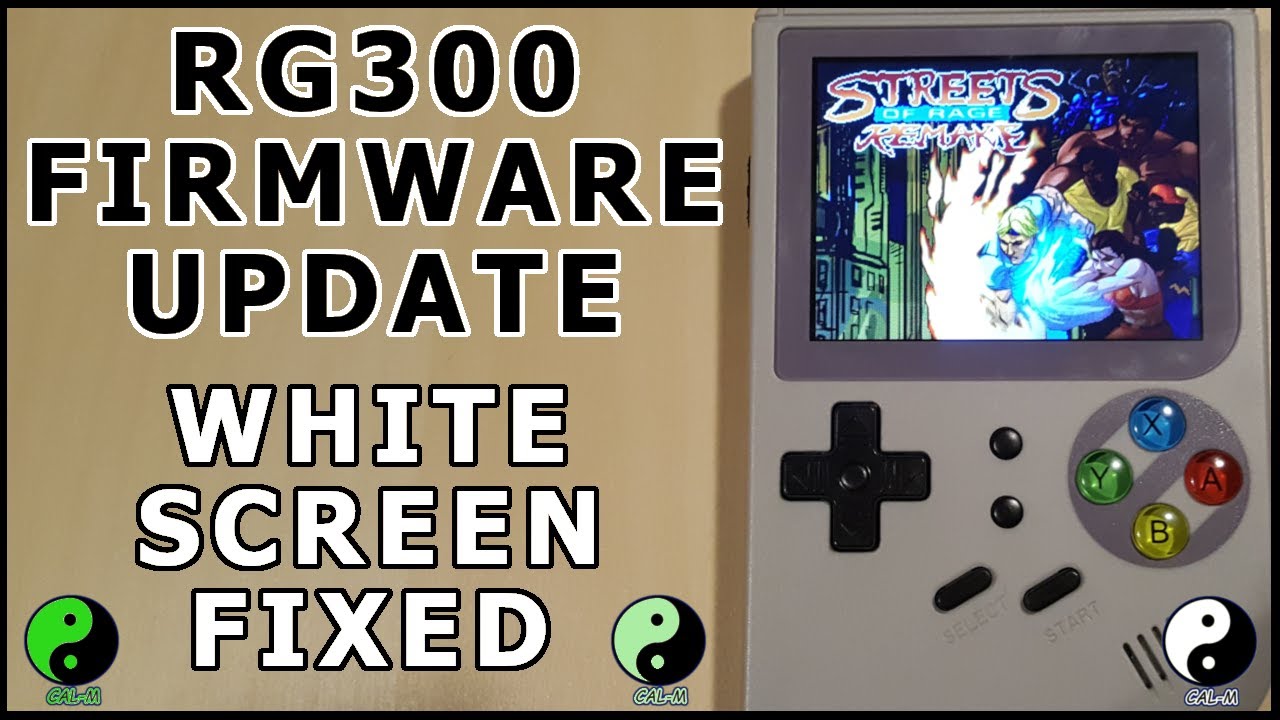
Here are the general steps to custom-flash your RG300:
Download the custom firmware: There are various custom firmware available for the RG300, such as Rogue or RetroFW. Download the firmware that you want to install onto your device.
Format an external SD card: To flash the custom firmware onto your RG300, you need to format an external SD card to the FAT32 file system. You can use a software like Rufus to format your SD card.
Copy the firmware files to the SD card: After formatting the SD card, extract the firmware files and copy them to the root directory of the SD card.
Insert the SD card into the RG300: Turn off the RG300, insert the SD card into the device and turn it back on.
Boot into the custom firmware: To boot into the custom firmware, press and hold the power button while the device is starting up. This should take you to the boot menu, where you can select the custom firmware.
Flash the custom firmware: Once you have booted into the custom firmware, you can follow the on-screen instructions to flash the firmware onto the device. This process may take several minutes.
Restart the device: After the custom firmware has been flashed onto the RG300, restart the device and test it to ensure that everything is working properly.
Note that customizing the firmware of your RG300 handheld game console may void its warranty, and there is always a risk of bricking the device. Therefore, it is important to follow the instructions carefully and at your own risk.